Welcome to cPanel — your website’s control center. cPanel gives you an easy, user-friendly interface for managing files, email accounts, backups, domains, performance tools, and more. This guide will walk you through how to access cPanel and introduce you to its major sections so you know where everything lives.
This is a high-level overview article. Each section below will eventually link to more detailed documentation for specific tools and tasks.
Accessing cPanel
You can access cPanel two different ways:
-
Through your Fistbump Media client dashboard
-
Directly via your domain name
Option 1: Accessing cPanel Through Your Hosting Account
-
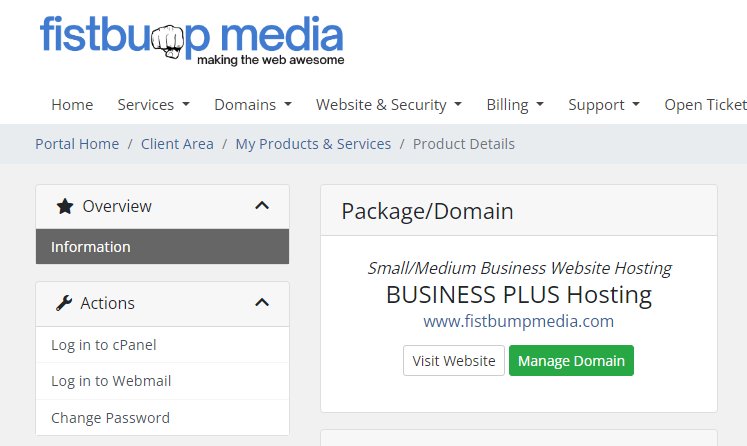
Go to https://fistbumpmedia.com, click Client Login, and sign in.
-
In your client area, click Services → My Services.
-
Select the hosting plan you want to manage.
-
Click Login to cPanel from your hosting overview screen.
You will be logged in automatically.
Tip: If you manage multiple sites, you will repeat this process for each hosting plan.
Option 2: Accessing cPanel Directly in Your Browser
You can also open cPanel directly by going to:
Then follow these steps:
-
Enter your cPanel username
-
Enter your cPanel password
-
Click Log In
If you do not know your credentials, contact Fistbump Media Support and we’ll help you reset them.
Navigating the cPanel Dashboard
cPanel is divided into several major sections. Here is a high-level overview of what’s available and what you can do in each area.
1. Files
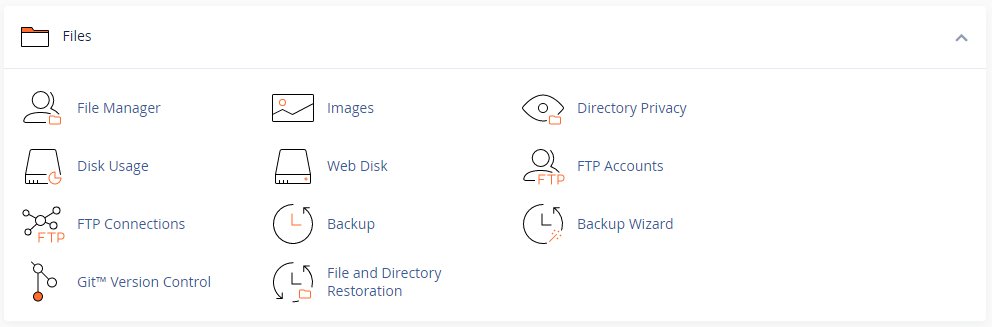
The Files section allows you to manage your website’s content, including files, folders, images, and backups.
Common tools include:
-
File Manager – Upload, edit, rename, or delete files
-
Images – Manage image thumbnails and conversions
-
Disk Usage – View storage usage
-
FTP Accounts – Create/manage FTP logins
-
Backups / Backup Wizard – Download or restore backups
???? Future Links:
-
Managing Files in cPanel (Coming Soon)
-
Understanding Backups in cPanel (Coming Soon)
2. Email
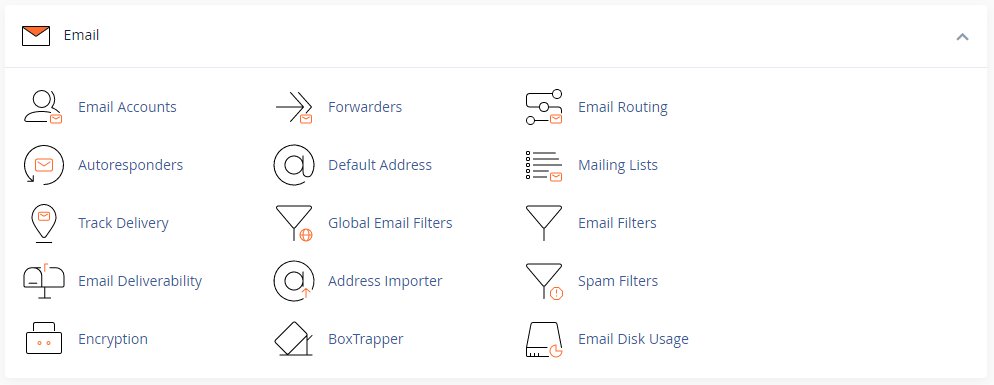
Use the Email section to manage all email features for your domain.
Available tools include:
-
Email Accounts – Create or modify email mailboxes
-
Forwarders – Redirect emails to another address
-
Autoresponders – Set vacation/automatic replies
-
Spam Filters – Filter unwanted mail
-
Email Routing – Configure how mail is handled
-
Email Deliverability – Improve mail sending reputation
???? Future Links:
-
Creating and Managing Email Accounts in cPanel (Coming Soon)
-
Email Forwarders and Autoresponders (Coming Soon)
-
Troubleshooting Email Deliverability (Coming Soon)
3. Domains
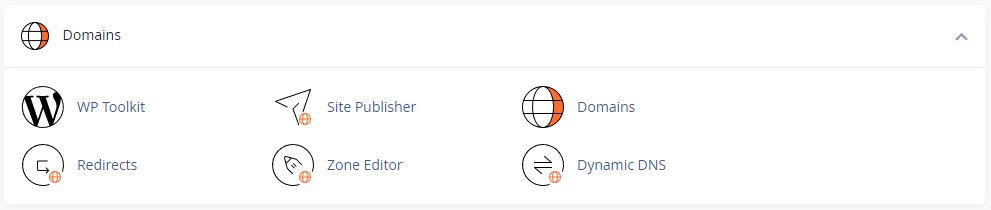
Manage domain-related settings such as:
-
Add-on Domains – Host multiple domains on one account
-
Subdomains – Create sub-sections of your site
-
DNS Zone Editor – Update DNS records
-
Redirects – Point URLs to different locations
???? Future Links:
-
Working with Domains in cPanel (Coming Soon)
-
Editing DNS Records (Coming Soon)
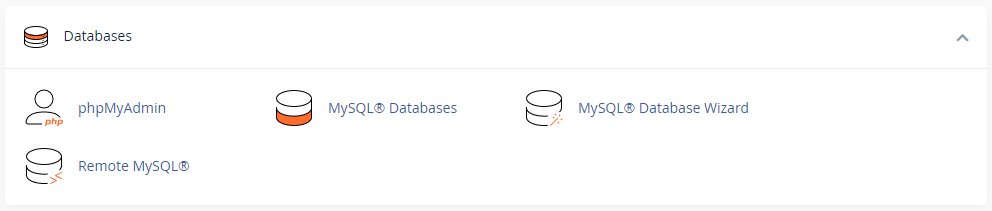
4. Databases
If your site uses WordPress (or any CMS), it uses a MySQL database.
In this section you can:
-
Create or delete databases
-
Create database users
-
Manage data with phpMyAdmin
???? Future Links:
-
Understanding Databases in cPanel (Coming Soon)
5. Metrics
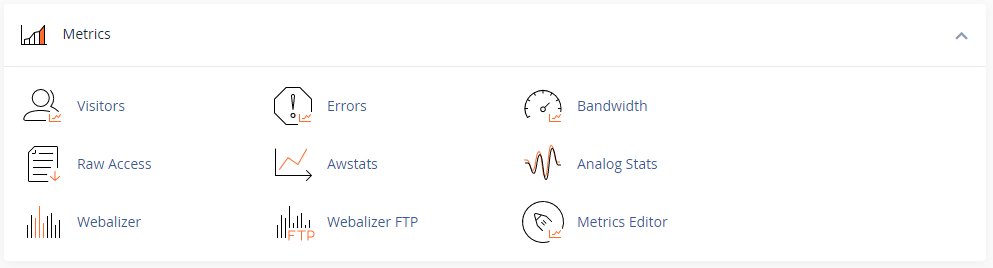
The Metrics section shows performance analytics and server statistics.
Common tools:
-
Visitors – See who visits your site
-
Errors – View site/server error logs
-
Bandwidth – Track traffic usage
-
Raw Access Logs – Download server logs
???? Future Links:
-
Understanding Metrics in cPanel (Coming Soon)
6. Security
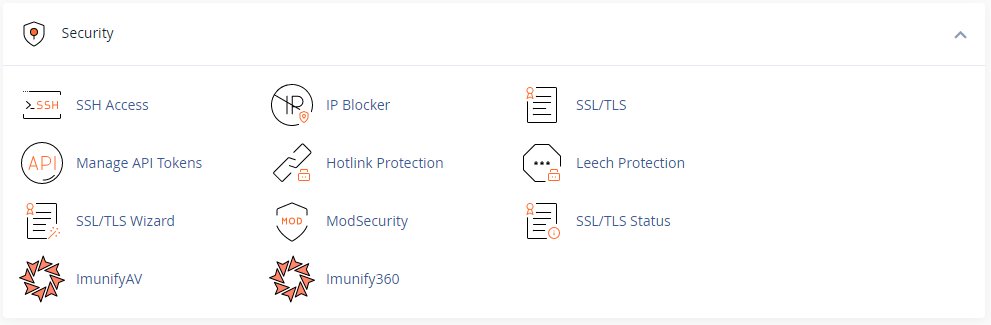
These tools help keep your website safe.
You can:
-
Install or check SSL certificates
-
Enable IP blocking
-
Configure hotlink protection
-
Manage security policies and access
???? Future Links:
-
Managing Security in cPanel (Coming Soon)
7. Software
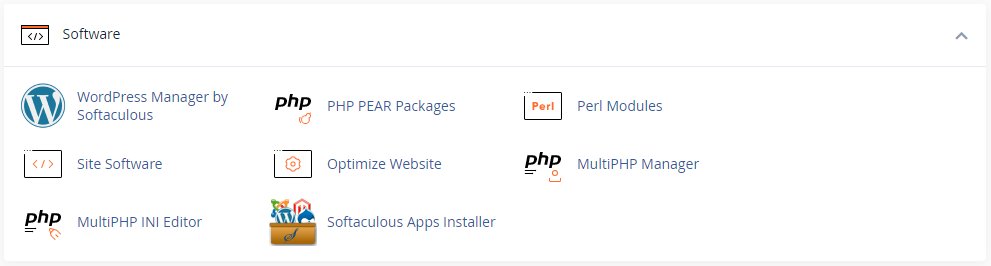
This section provides tools for installing and managing applications.
Includes:
-
WordPress Toolkit (on supported servers)
-
PHP Selector – Change your PHP version
-
Optimize Website – Enable compression
???? Future Links:
-
Using the Software Tools in cPanel (Coming Soon)
-
How to Change Your PHP Version (Coming Soon)
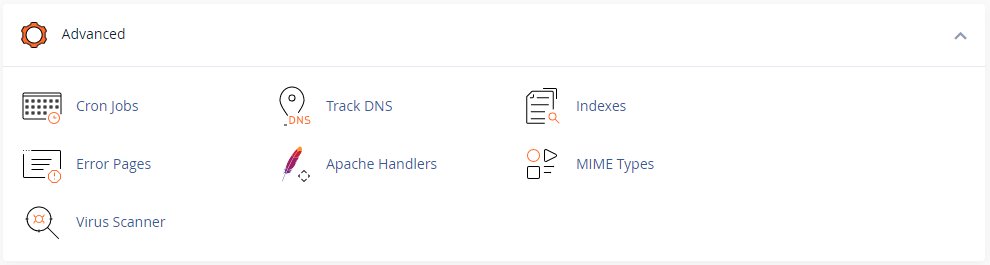
8. Advanced
Advanced users will find tools like:
-
Cron Jobs
-
MIME Types
-
Apache Handlers
-
Index Manager
???? Future Links:
-
Advanced Tools Overview (Coming Soon)
Conclusion
You should now have a clear understanding of how to access cPanel and what each major section is used for. This guide serves as a starting point and a navigation hub. As our Knowledgebase expands, you'll be able to click into each area for step-by-step instructions and detailed explanations.
If you need help accessing cPanel or navigating any features, feel free to reach out to Fistbump Media Support. We’re here to help you make the web awesome.
Applicable Services: Managed WordPress Hosting